Indoor Space Capture Guide
Written By Aholo3d
Last updated 6 months ago
Capture an indoor space with your phone to generate a complete, editable 3D scene. Follow the steps and tips below for better results.
Before You Start
1. Device & Environment Requirements
Before you begin, make sure you have:
A stable smartphone (the newer ones are recommended for better results)
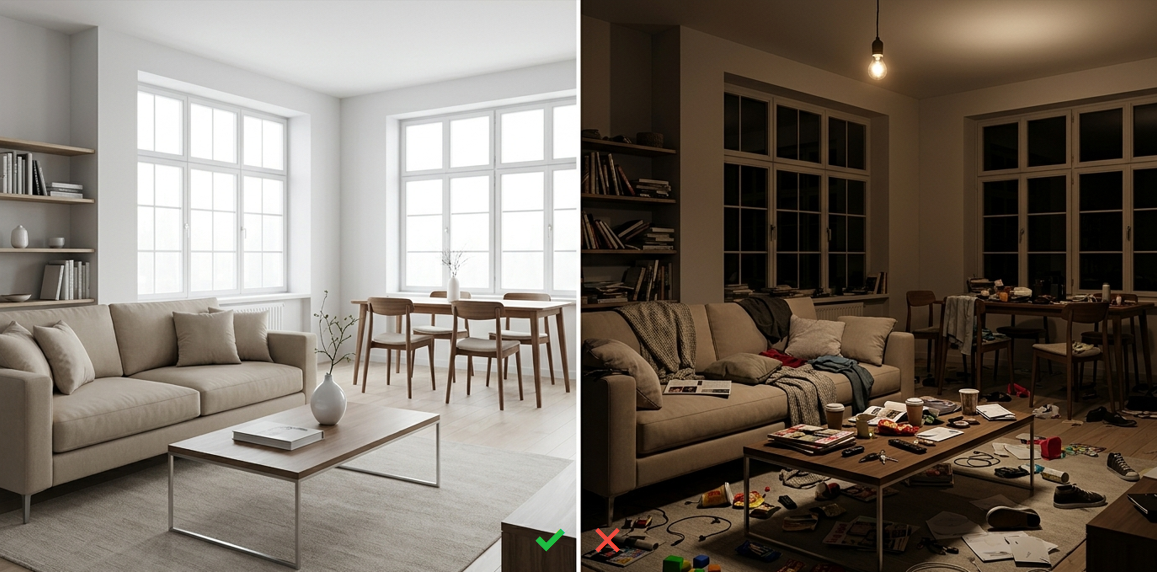
Sufficient lighting
A clean, clutter-free space
Optional Equipment (Advanced)
In addition to a smartphone, you can also use other video-capable devices, such as:
Mirrorless or DSLR cameras
Action cameras
Higher-resolution devices can capture sharper details in well-lit conditions.
Note:
Keep footage stable (use a gimbal or tripod if possible)
Follow the same movement and coverage guidelines in the guide
Ensure continuous recording with no noticeable shaking or frame drops
2. Environment Checklist
Before capturing, make sure to:
Turn on all lights in the room
Clear floor obstacles (to avoid interrupting your path)
Reduce clutter as much as possible
Avoid or cover mirrors and reflective surfaces (e.g., glass)
Remove moving objects (fans, pets, people, etc.)
3. Lighting Requirements
Keep lighting bright and evenly distributed
Avoid harsh direct light or large shadows
Start Scanning
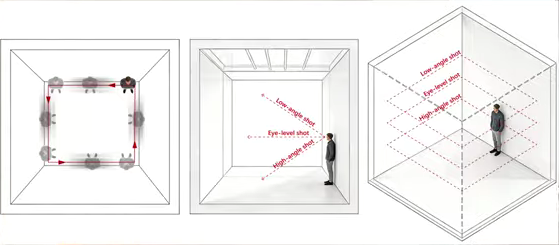
1. Begin from a Corner
Start in a corner of the room
Aim at the corner and slowly move forward
2. Move Slowly
Walk at a slow, steady pace
Maintain a consistent speed
Avoid sudden turns
3. Control Distance
Keep a distance of about 1–3 meters from walls or objects
Avoid getting too close to surfaces
4. Keep Movement Steady
Move at a consistent walking speed (~0.6 m/s)
Avoid sudden movements or quick turns
5. Ensure Full Coverage
Walk along the perimeter of the room, completing at least one full loop
Make sure all areas are captured
Maintain overlap between paths
Key Areas to Capture
Ensure you cover:
Walls (from floor to ceiling)
Ceiling edges (tilt the device upward when needed)
Doors and windows
Furniture (including backsides)
Multi-Angle Coverage
For complex areas:
Capture from multiple angles
For larger spaces, walk an extra loop
Capture Tips
Hold the device with both hands for stability
Keep movement smooth and controlled
Observe and capture details from multiple angles
Focus on:
Room corners
Furniture edges
Complex structures
Quality Requirements
Image Coverage & Overlap
Capture enough usable views (typically at least 20 key perspectives)
Maintain ≥70% overlap between adjacent views
When using video:
The system will automatically extract keyframes as images
Avoid Low-Texture Areas
Minimize large blank surfaces (e.g., plain white walls, mirror)
If unavoidable:
Step back slightly
Include more textured elements (furniture, edges, corners) in the frame
Common Issues & Optimization
Common Issues
Moving too fast → Motion blur
Low lighting → Loss of detail
Incomplete coverage → Missing parts in the model
Shaky footage
Getting too close to objects
Drastic lighting changes
Best Practices
Use even lighting (natural or indoor lighting)
Keep the space tidy
Hold the device steady
Avoid very dark environments or harsh direct light
After Capture
Once you’ve finished:
Upload your footage to the Aholo app or website to generate a 3D scene
Wait for processing to complete
Use the editor to crop, annotate, and measure
Export a video or share via link
Was this helpful?
Still need help? Ask the team