Create Imagined 3D Worlds with AI
Written By Aholo3d
Last updated 4 months ago
You can use a text prompt, an image, or a combination of both to generate a panoramic scene and automatically create a corresponding Aholo project with one click.
The generated project can then be opened and edited in the editor.
1. Access the AI Spatial Generation
Log In and Enter the Workspace
Go to the Aholo website and log in to your account
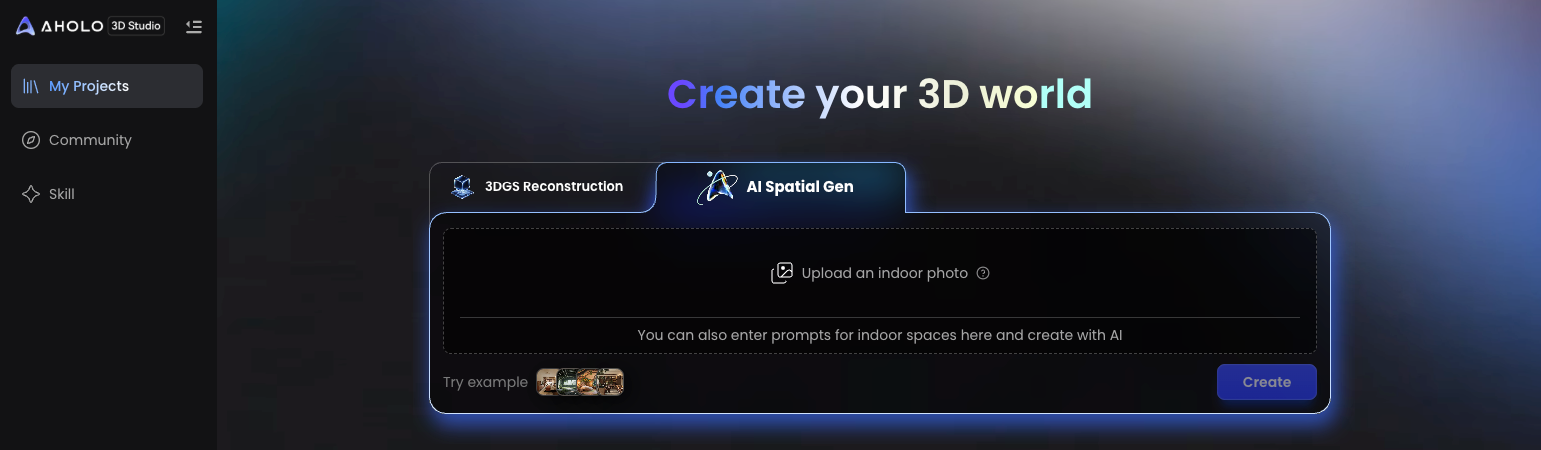
Enter the workspace and click “Create”
Select “AI Spatial Gen” from the creation methods
Available input methods:
Image
Text
Text + Image
2. Supported Input Types and Requirements
2.1 Text Generation
Generate a panoramic scene and create an Aholo project from a descriptive text prompt.
Text Length
Minimum recommended: 20 characters
Recommended: 50–300 characters
(More detailed descriptions generally produce results that better match your intent.)
Prompt Suggestions
Include:
The space type (living room, bedroom, dining room, office, etc.)
The visual style (modern, Scandinavian, Japanese, industrial, etc.)
Optional details such as colors, materials, lighting, and decorative elements
Example
“A modern living room with a gray fabric sofa, wooden flooring, large floor-to-ceiling windows, abundant natural light, and a minimalist TV feature wall.”
2.2 Image Generation
Generate a panoramic scene and create an Aholo project based on a reference image.
Supported Formats
.jpg
.jpeg
.png
.webp
Image Size Requirements
480 × 480 to 4000 × 4000
2.3 Text + Image Generation
You can provide both a text description and an image so the AI can reference both visual and textual information to generate a more accurate scene.
Recommended Usage
Use the image to provide the overall layout and base style
Use text to specify detailed requirements such as:
Color adjustments
Furniture additions/removals
Material preferences
Decorative changes
3. Generate the Panorama and Aholo Project
Submit a Generation Task
Enter text / upload an image / use a text + image combination
Click “Create” to start the task
Processing Time
Generation time may vary depending on:
The complexity of the text or image
Current queue volume
Typically:
Panorama generation completes within 3 minutes
Gaussian reconstruction results are generated within 15 minutes
4. View and Manage Generated Results
Once AI generation is complete, the system will automatically create a corresponding Aholo project, which you can view and manage in the workspace.
View Generation History
Go to:
“My Projects” in the workspace
or “AI Generation History”
Find the newly created AI-generated 3DGS project.
Open in the Editor
Click “Open in Editor”.
You can then edit and optimize the project, including:
Model adjustments
Annotations
Measurements
Other core editing operations
5. Available Operations in the Editor
After opening the generated AI project, you can perform editing operations similar to reconstruction-based projects, including but not limited to:
View Navigation
Pan, rotate, and zoom the camera
Navigate through panoramas or switch viewpoint positions
Model and Space Editing
Adjust furniture placement
Add or remove objects
Modify materials, colors, and decorative elements
(depending on feature support)
Annotation and Measurement
Add hotspot annotations and text descriptions
Measure and mark key dimensions
Export and Sharing
Export presentation images or videos
Generate shareable links for internal review or public presentation
6. Best Practices
Use clear and complete reference images whenever possible to help the AI better understand the spatial layout.
Be specific about the space type, style, and key elements in your prompts to avoid overly vague results.
If you are not satisfied with the generated result, you can keep the existing project and try multiple prompt variations for easier comparison and iteration.
Was this helpful?
Still need help? Ask the team