Object Capture Guide
Written By Aholo3d
Last updated 6 months ago
Scan small to medium-sized objects with your phone (or camera) to generate a complete, editable 3DGS model. Follow the steps below for better results.
Before You Start
1. Device Check
A smartphone.
High-resolution camera can be used for higher quality results.
2. Object & Environment Requirements
The object should have sufficient texture or feature points (e.g.rocks, wooden items)
Avoid textureless surfaces; for reflective or transparent objects, add surface texture to improve results
Place the object on a stable surface
Leave at least 1–1.5 meters of space around the object for full walk-around capture
Use a clean background with good contrast from the object
Ensure even lighting; avoid harsh shadows
Set the center point on the main solid part of the object
How to Capture
1. Capture Modes
2. Capture Distance
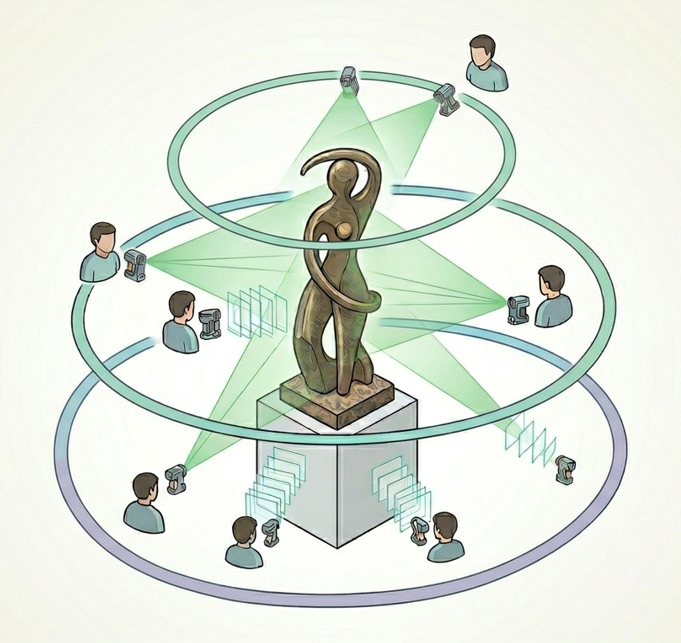
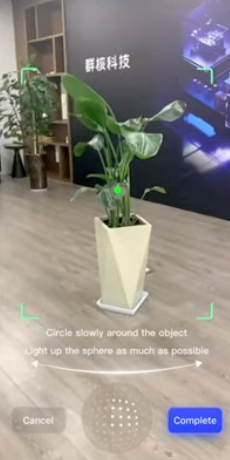
3. Capture Path
To fully capture the object and its details, follow this sequence:
Spiral Orbit
Top ring: circle slightly above the object
Middle ring: circle at the object’s mid-level
Bottom ring: circle slightly below the object
If using photos instead of video: Maintain 70–75% overlap between consecutive images
Close-up Shots
Capture surface textures, carvings, and complex areas up close
Take the same detail from slightly different angles
Close-ups don’t need full coverage, but overlap should still be ≥70%
Capture Tips
Hold the device with both hands for stability
Move slowly; avoid sudden turns
Capture complex areas from multiple angles
For reflective or transparent objects, lightly apply chalk spray or coating to add texture
Do not move the object during capture
Quality Requirements
Image Count & Overlap
Minimum: 20 images; for complex objects, 50–60 recommended
Ensure ≥70–75% overlap between adjacent images
Video Mode
Continuous recording is supported; the system will extract keyframes automatically
Move slowly and smoothly around the object
Avoid rapid motion or abrupt direction changes
Common Issues & Optimization
Common Issues
Moving too fast → Motion blur
Uneven lighting → Loss of detail
Missing angles → Incomplete model
Insufficient close-ups → Poor surface detail
Best Practices
Use even lighting and a clean background
Keep your hands steady and move slowly
Capture the top, bottom, and hidden areas
Use multiple angles to capture textures and curved surfaces
After Capture
Once you’ve finished capturing:
Review images and delete blurry or poorly exposed ones
Upload to the Aholo app or website to generate your 3D model
Wait for processing to complete
Enter the editor to crop, annotate, or measure
Export a video or share via link
Was this helpful?
Still need help? Ask the team