Help and Feedback
Written By Aholo3d
Last updated 2 days ago
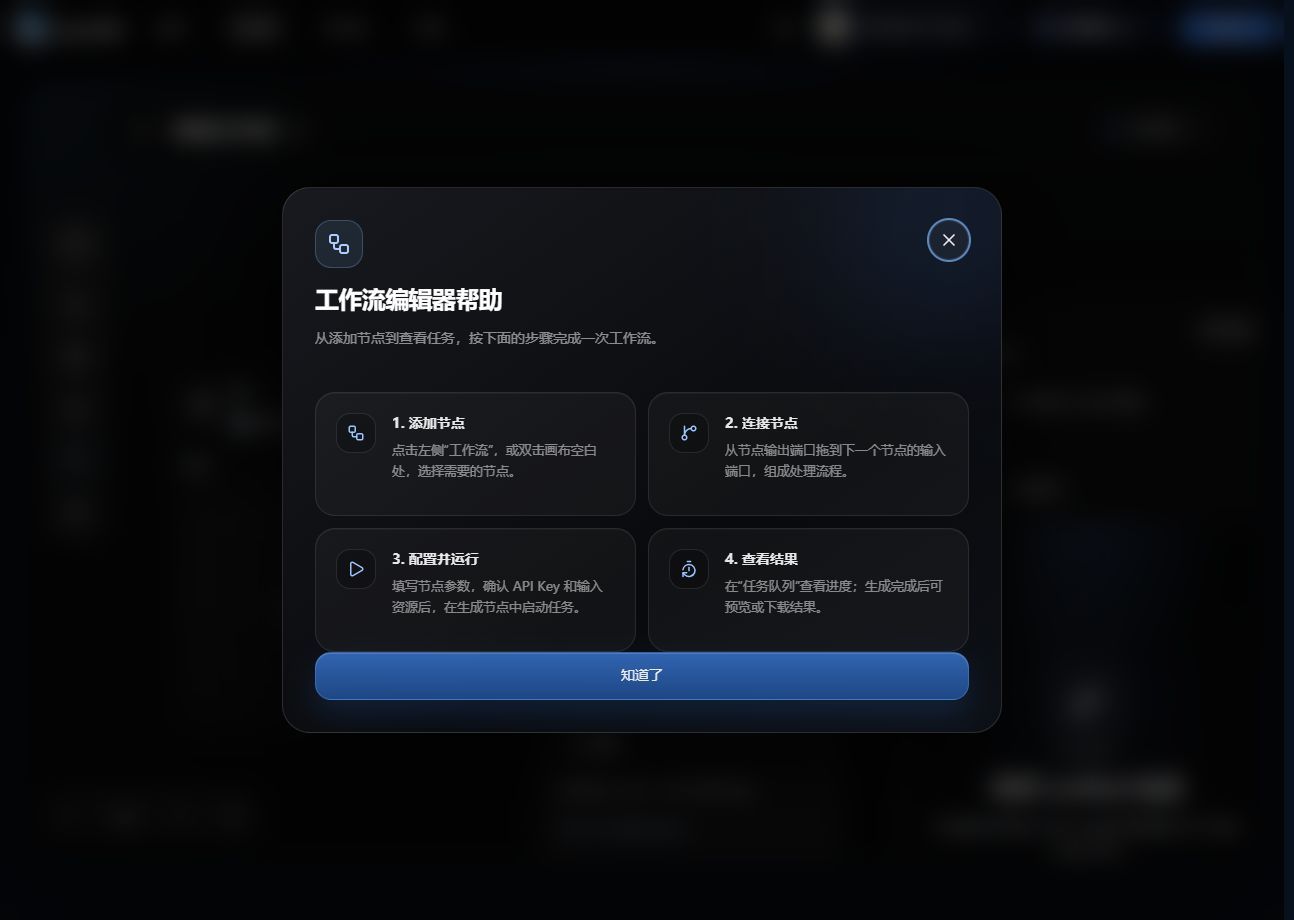
Figure 15: Pro workflow help panel
1. In-App Feedback
Click "Help and Feedback" in the bottom-right corner of the page.
Feedback types include: Other, Issue, Suggestion, Experience.
Enter a detailed description (up to 300 characters); submissions with empty content are not accepted.
Feedback is linked to your current login account for easier tracking and follow-up.
If you are not logged in or your session has expired, a login window will appear; resubmit after logging in.
On successful submission, the input box clears and a success prompt appears; on ordinary failures, content is retained so you can retry or switch to email.
We recommend providing: the page where the issue occurred, operation steps, model name (e.g. Lux3D 3.0 or G1), task ID, error message, screenshots, and browser/OS versions. Do not send passwords or full API keys.
2. Other Contact Channels
Official user group: Scan the WeChat QR code in the help popup; the community card does not reappear after the current session is closed.
Product manual: The "Lux3D Product Manual" in the help popup opens this document.
Was this helpful?
Still need help? Ask the team