Waypoint
Written By Aholo3d
Last updated 2 months ago
Waypoints let you add a series of guided points with descriptions and saved camera views to your 3DGS scene, making it easy for viewers to explore the scene in a predefined order.
They are ideal for guided tours, presentations, and interactive showcases. By creating multiple waypoints, viewers can navigate through the scene step by step for a more structured and immersive experience.
Create Waypoints
Select Annotation → Waypoint.
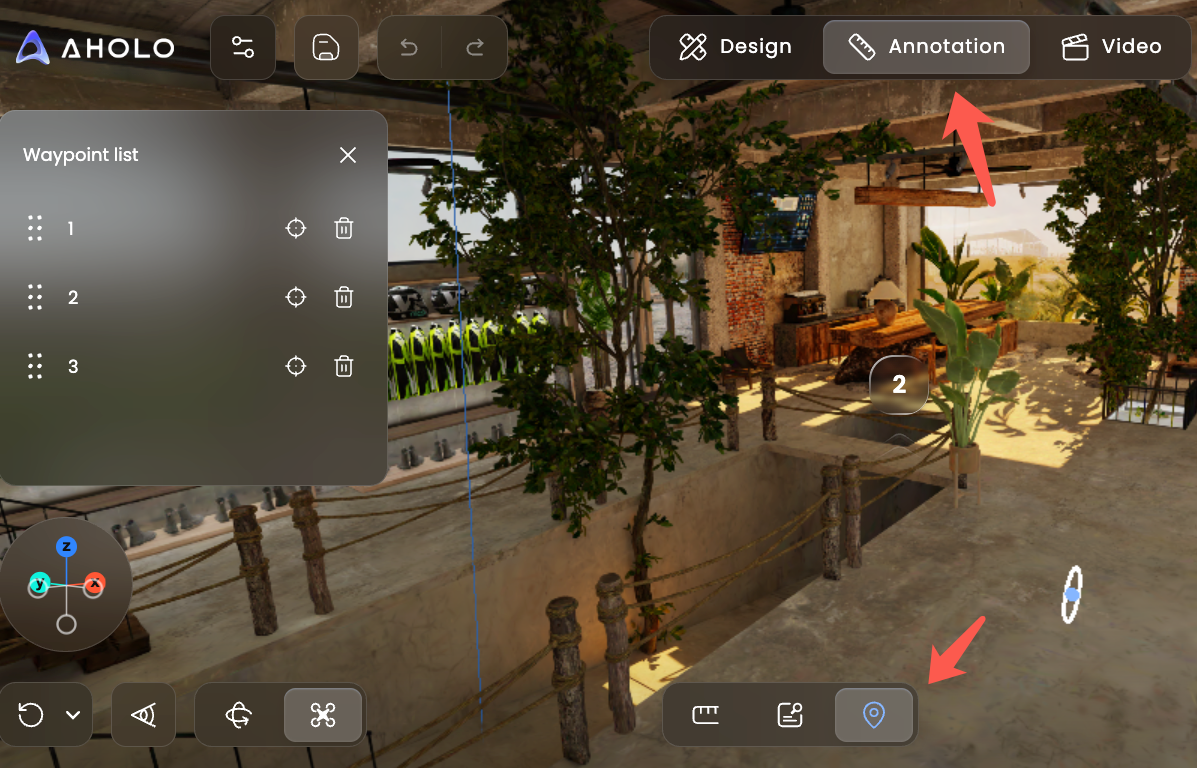
Add a Waypoint
Click anywhere in your 3DGS scene to create a waypoint.
Each waypoint is automatically assigned a number (1, 2, 3, …) indicating its display order. You can rearrange the order later at any time.
Add a Description
After creating a waypoint, enter a description to introduce the location.
For example:
Exhibit information
Architectural details
Scene description
Tour guidance
Save the Camera View
Adjust the camera to the view you want viewers to see, then click Save View.
When viewers open this waypoint, the camera will automatically switch to the saved view.
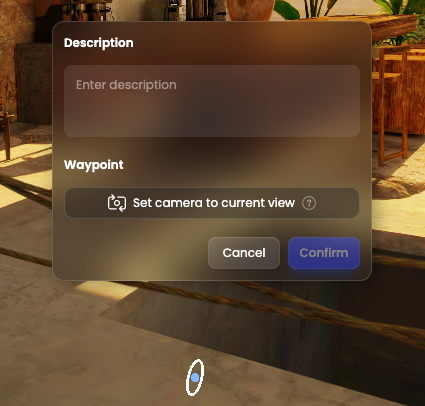
Once you've finished configuring the waypoint, click Confirm to save it.
Repeat these steps to create as many waypoints as needed.
Edit & Organize
After creating waypoints, they will appear in the Waypoint List on the left.
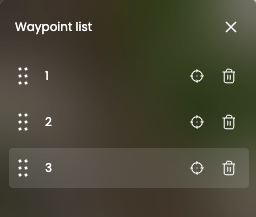
Reorder Waypoints
Drag and drop waypoints to change their order.
The waypoint numbers and playback order will update automatically.
Locate a Waypoint
Click the Locate button next to a waypoint to quickly jump to its position in the scene for review or editing.
Edit
Click a waypoint to update its description or saved camera view.
Delete
Click Delete to remove a waypoint.
The remaining waypoints will be automatically renumbered.
Use Cases
Waypoints are ideal for any experience that benefits from guided navigation, including:
Exhibition Tours: Add descriptions and recommended viewing angles for each exhibit.
Museums & Cultural Heritage: Guide visitors through artifacts, historic buildings, or archaeological sites.
Real Estate Showcases: Walk viewers through living rooms, bedrooms, kitchens, and other spaces.
Tourism & Scenic Attractions: Create immersive guided tours across landmarks and points of interest.
With Waypoints, you can transform a freely explorable 3D scene into a guided experience, helping viewers discover your space exactly as you intended.
Was this helpful?
Still need help? Ask the team