Hotspot Annotation
Written By Aholo3d
Last updated 6 months ago
With the Hotspot feature, you can add text, links, images, or videos to your 3DGS model—making it more informative, interactive, and easy to understand.
Hotspots can be used to:
Highlight key information
Emphasize important details
Present projects or provide feedback
Add a Hotspot
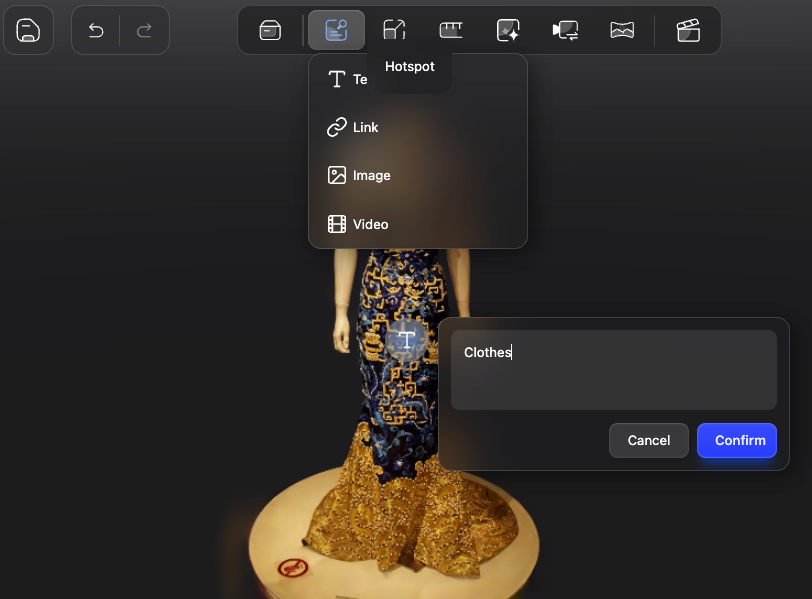
1. Open the Hotspot Tool
Click the “Hotspot” button in the top toolbar
Choose the type of content you want to add:
Text
Link
Image
Video
2. Place the Hotspot
Click anywhere on the model
Open the hotspot editor panel
3. Enter Content and Save
Enter your content in the popup panel
Click “Confirm”
Hotspot Content Types
You can add different types of content to your hotspots:
1. Text
Add descriptions, notes, or comments
Ideal for annotations or feedback
2. Link
Enter a URL
Use cases:
Product pages
Reference materials
Project documentation
3. Image
Supports uploading multiple images
4. Video
Upload videos or add video links
Supports embedded codes from major platforms (e.g., YouTube, Bilibili, etc.)
View & Edit Hotspots
1. View Hotspots
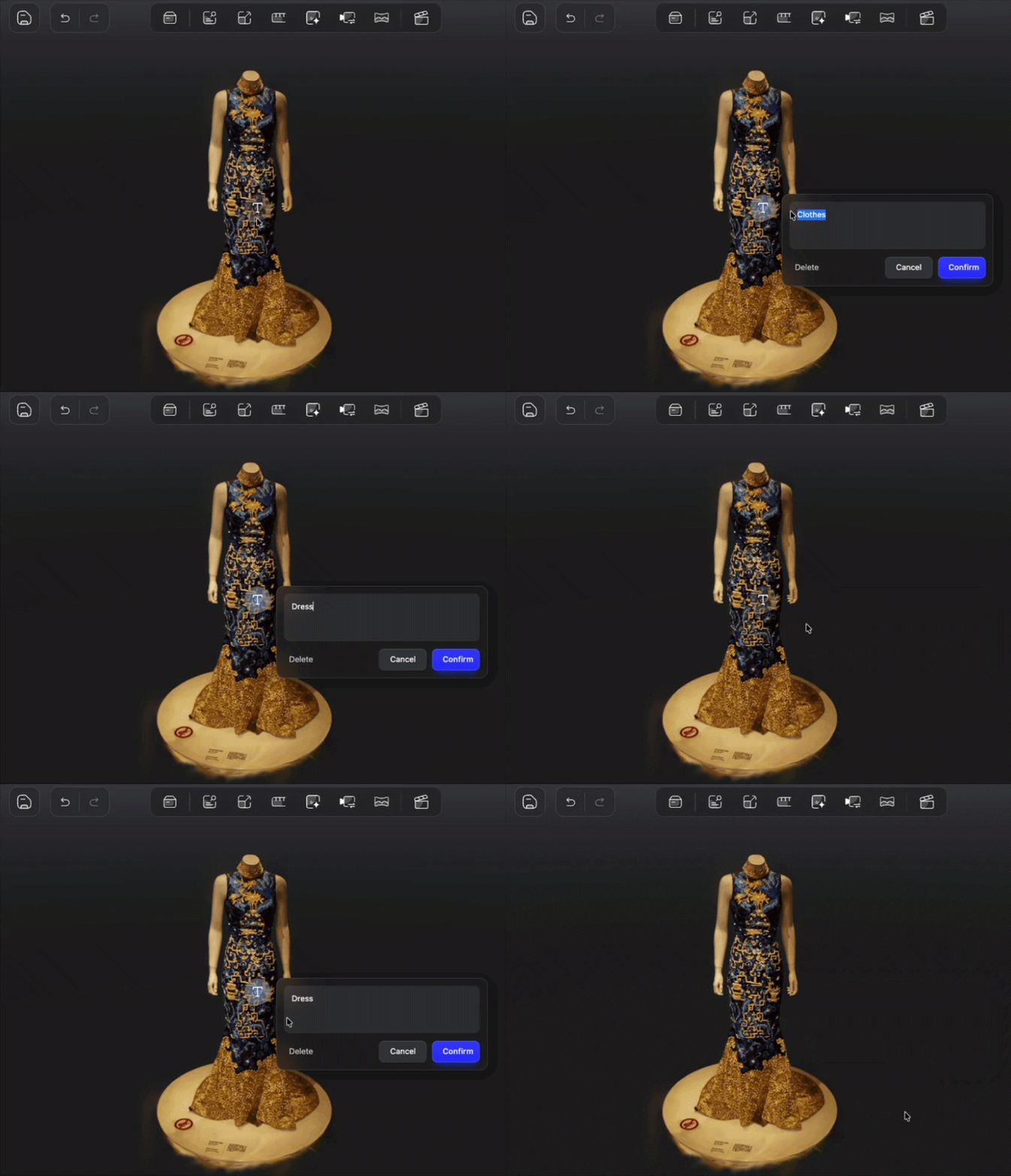
Click a hotspot in the model
Open the content panel
2. Edit or Delete
Edit content directly in the panel
Or click delete to remove the hotspot
Click “Confirm” to save changes
Use Cases
1. Project Presentation
Annotate spatial layouts
Explain design intent
2. Product Showcase
Highlight key features or details
Add supporting images or videos
3. Collaboration & Feedback
Team members can comment directly on the model
Record issues or suggestions
4. Teaching & Demonstration
Explain model structure step by step
Guide the viewing sequence
What’s Next
After adding hotspots, you can:
Was this helpful?
Still need help? Ask the team