Camera Control
Written By Aholo3d
Last updated 4 months ago
In the Aholo Editor, you can freely navigate and explore 3D scenes or models using your mouse, keyboard shortcuts, and editing tools.
Mastering camera controls helps you inspect model details more efficiently, adjust viewpoints, set up the scene composition, and prepare for further editing tasks such as Ground Reference Line adjustment, Skybox settings, Field of View adjustment, and Local Selection.
This tutorial introduces basic camera controls, camera view settings, camera modes, and several commonly used auxiliary editing tools.
1. Basic Controls
You can control the camera using the following actions:
2. Camera View Settings
1. Set Default View
You can set the current view as the default view. This determines:
The initial view when the model is opened
The first impression when sharing
Steps:
Adjust the project to your desired angle
Click “Set Current View as Default”
Tips:
For objects: Choose a front view or a 45° angle to highlight shape and details
For spaces: Choose a position that showcases the overall layout
2. Reset View
Shortcut: R
Or click the “Reset View” button
Quickly returns the camera to the default view.
3. Camera Modes
Aholo provides two camera modes:
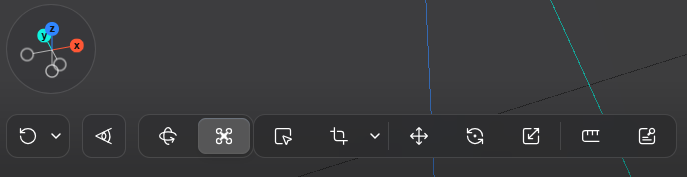
1. Fly Camera
Fly Mode allows you to move freely through the 3D scene.
Best for:
Viewing overall structure
Analyzing spatial layout
Measuring dimensions
2. Orbit Camera
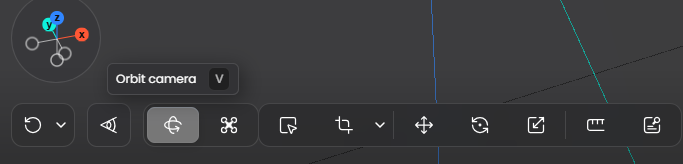
Orbit Mode allows you to view the model from different angles while keeping the focus on the scene or object.
Best for:
Indoor / outdoor navigation
Immersive viewing
Simulating real-world perspective
How to switch:
Click the “Switch Camera” button
4. Ground Reference Line
The Ground Reference Line helps you confirm the ground position and orientation in the scene, making the model or content better aligned with the real-world space.
When using it, enable the reference line and align the model with the ground direction, wall edges, corners, or floor tile lines in the scene. After alignment, you can continue with further viewing or editing.
Move: Adjust the position of the object or scene relative to the reference line.
Rotate: Adjust the overall orientation of the object or scene relative to the reference line.
Scale: Adjust the size of the object or scene.
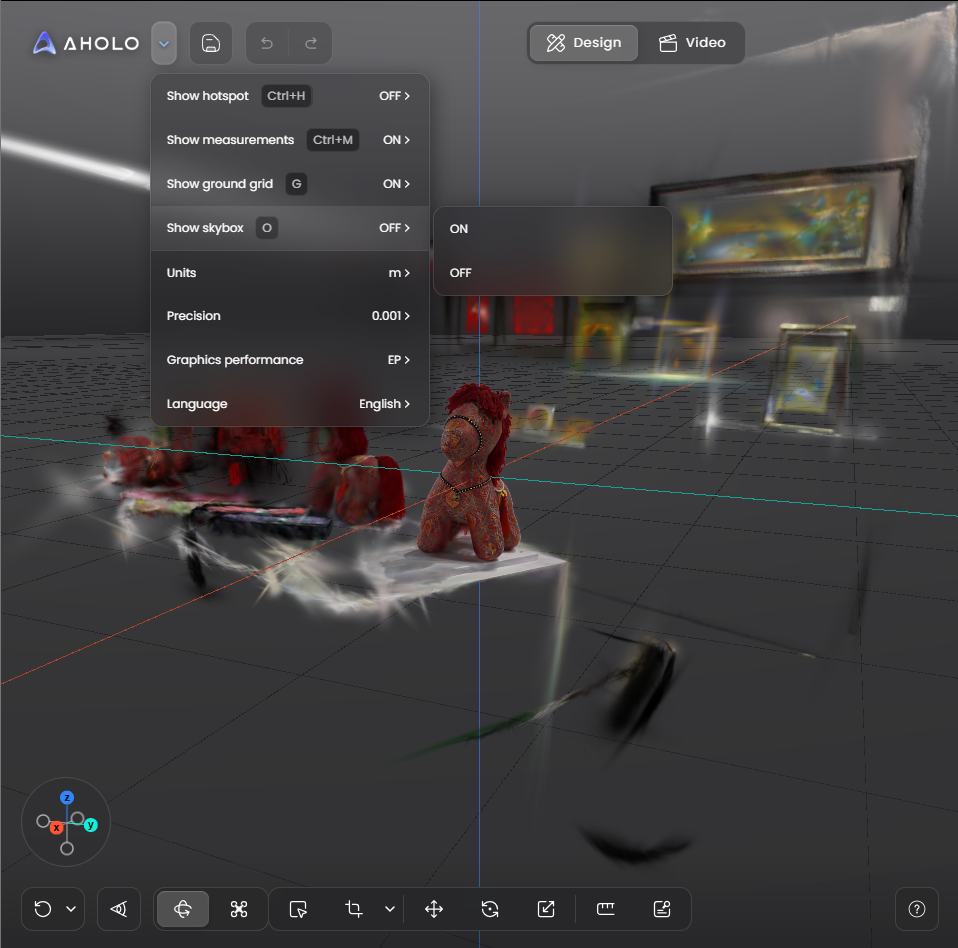
5. Skybox
Skybox is used to set the background environment of the scene, helping create a more complete spatial atmosphere and visual context.
To use it, enable Skybox and make sure the background blends naturally with the main subject or scene.
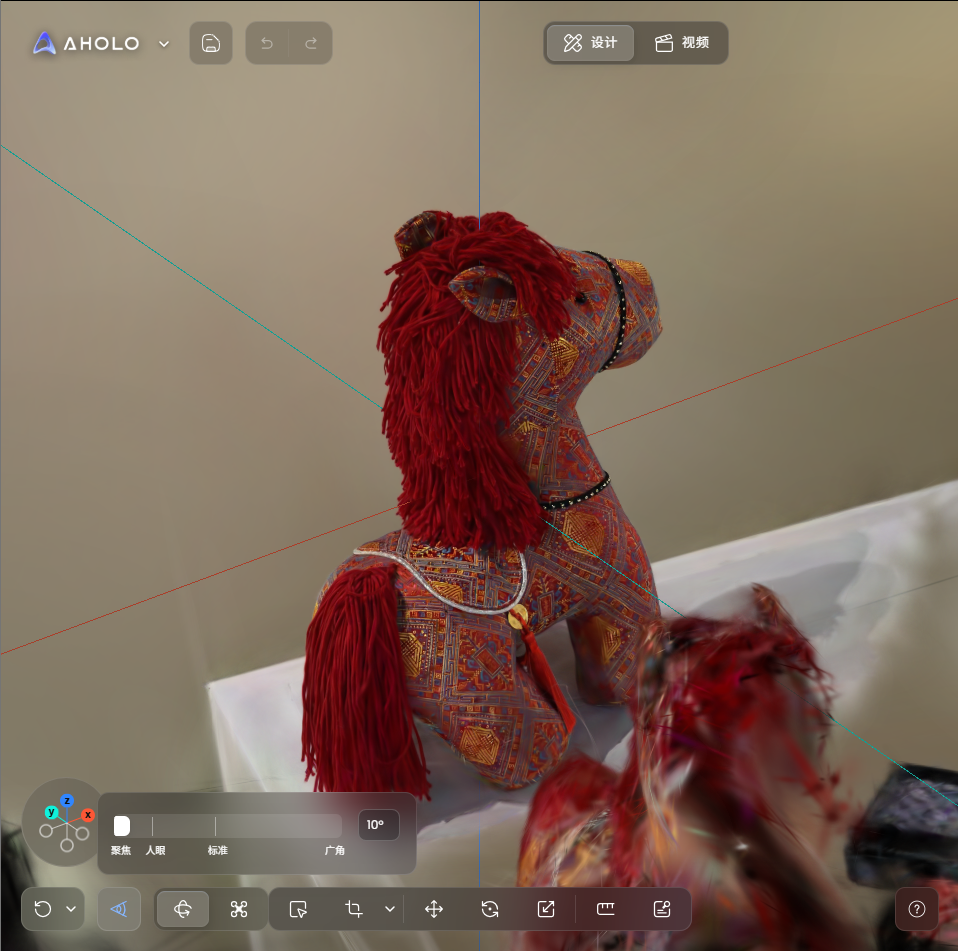
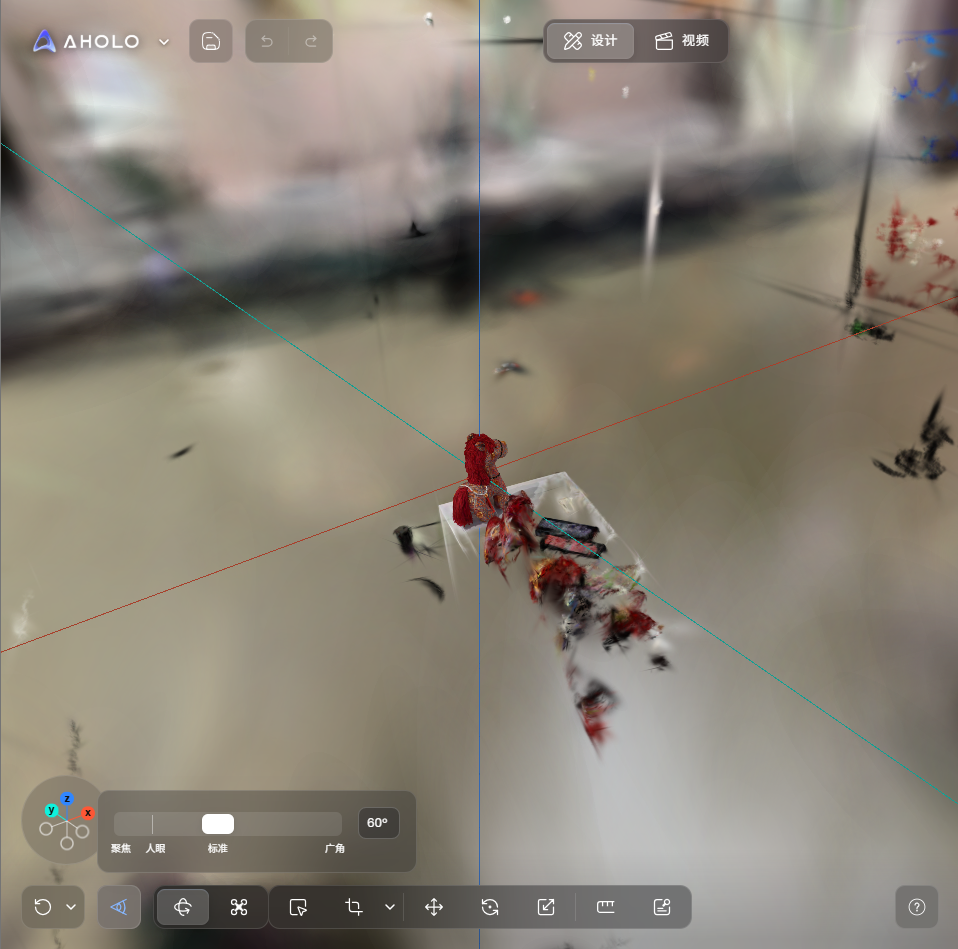
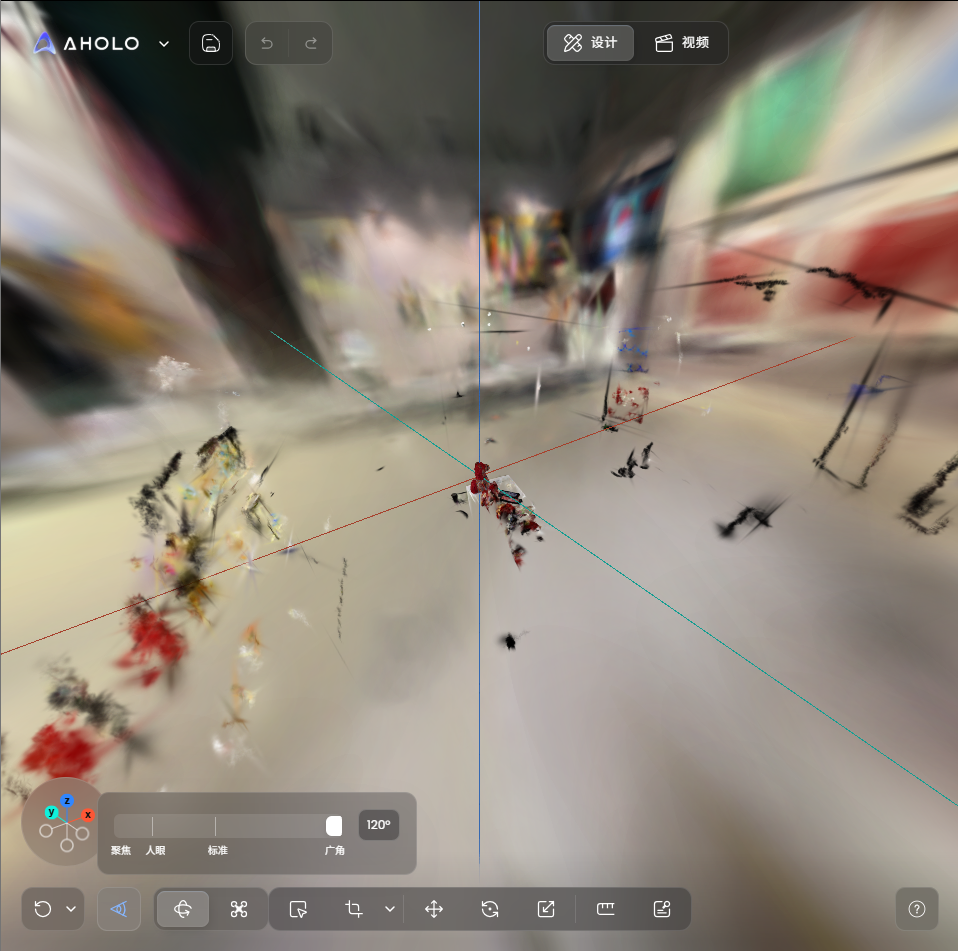
6. Field of View
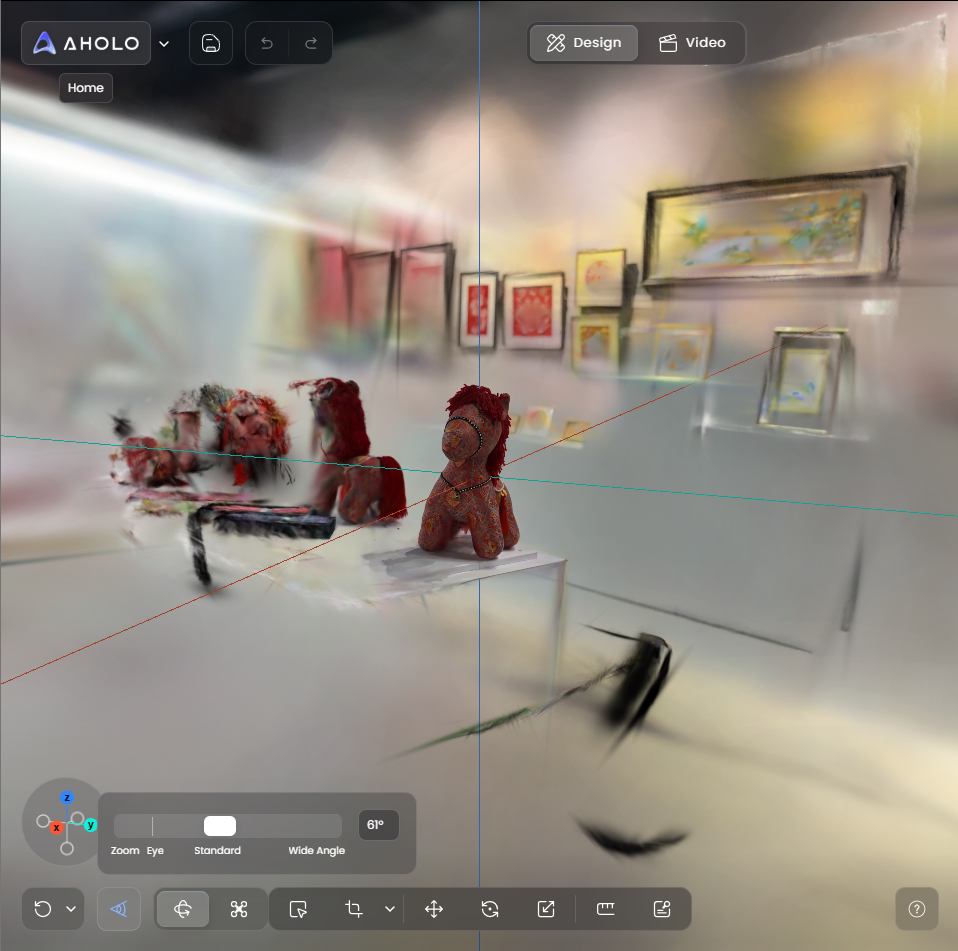
Field of View controls how much of the scene is visible in the frame. It affects the sense of space and the overall camera look.
A larger Field of View shows a wider area of the scene.
A smaller Field of View makes the subject appear more focused.
When adjusting the Field of View, choose a value based on the result you want to achieve. Use a wider view to present the overall environment, and use a narrower view to emphasize a specific object or subject. After adjustment, make sure the frame, proportion, and subject position look natural.
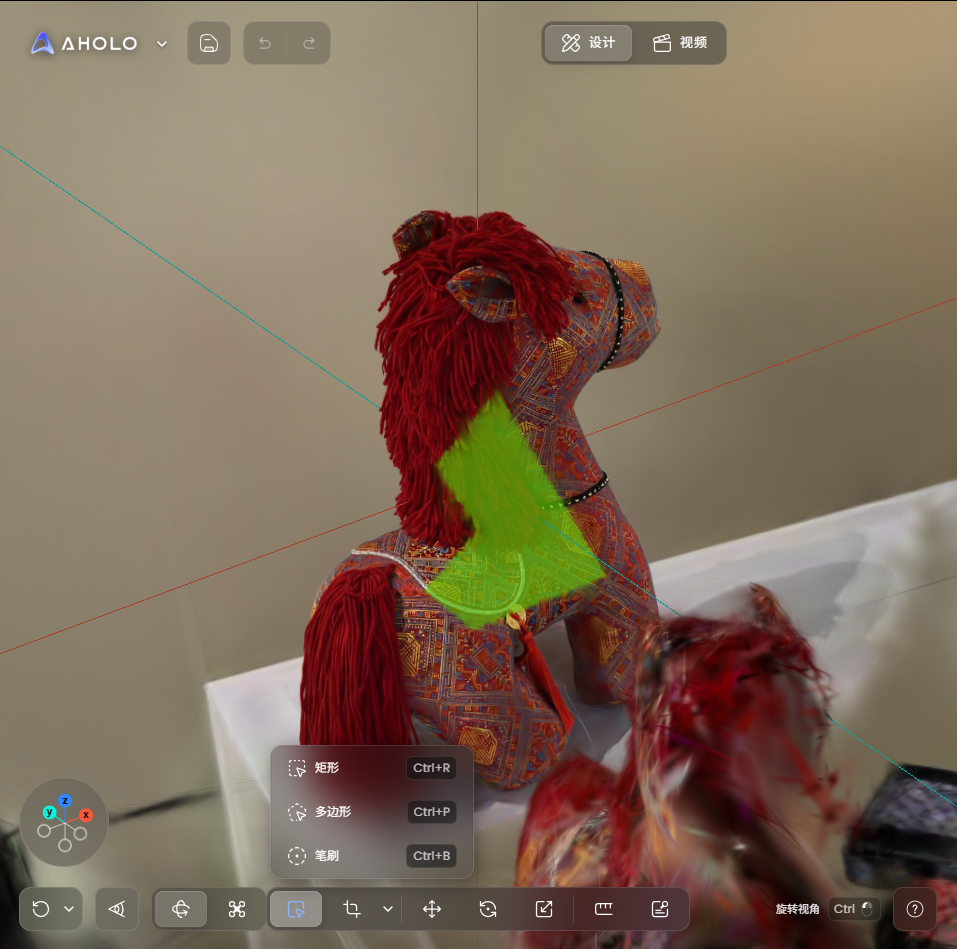
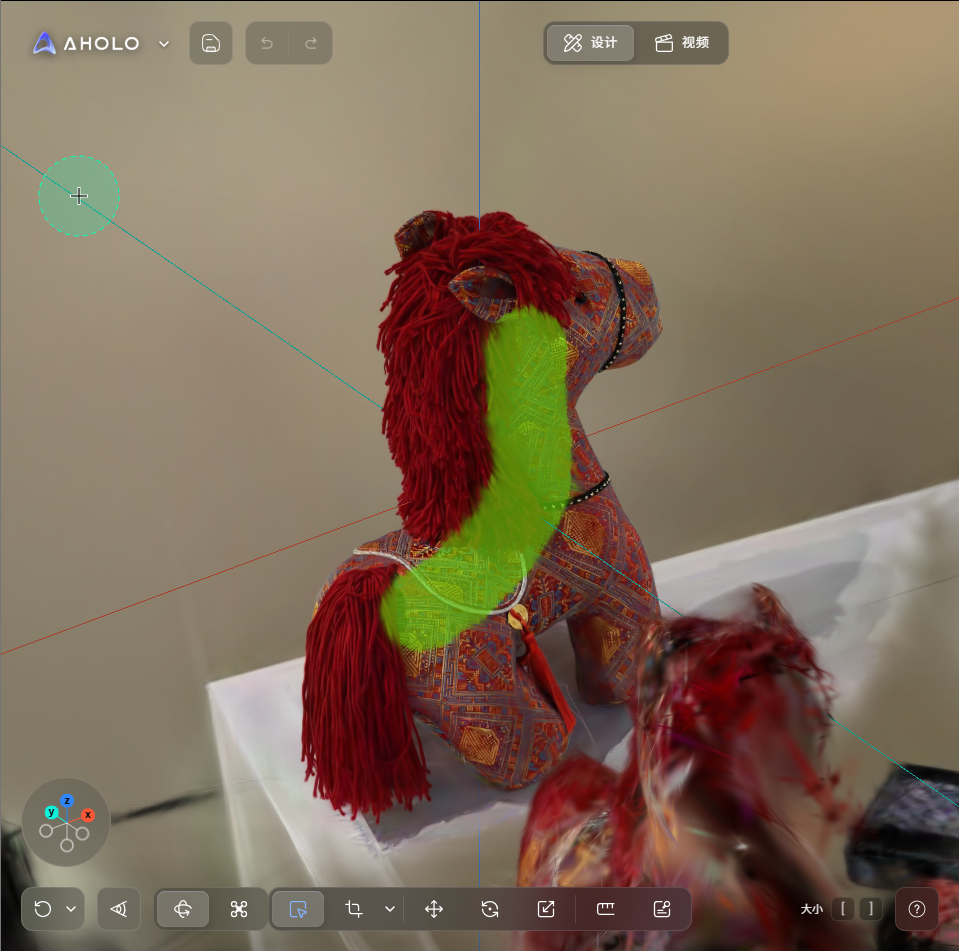
7. Local Selection
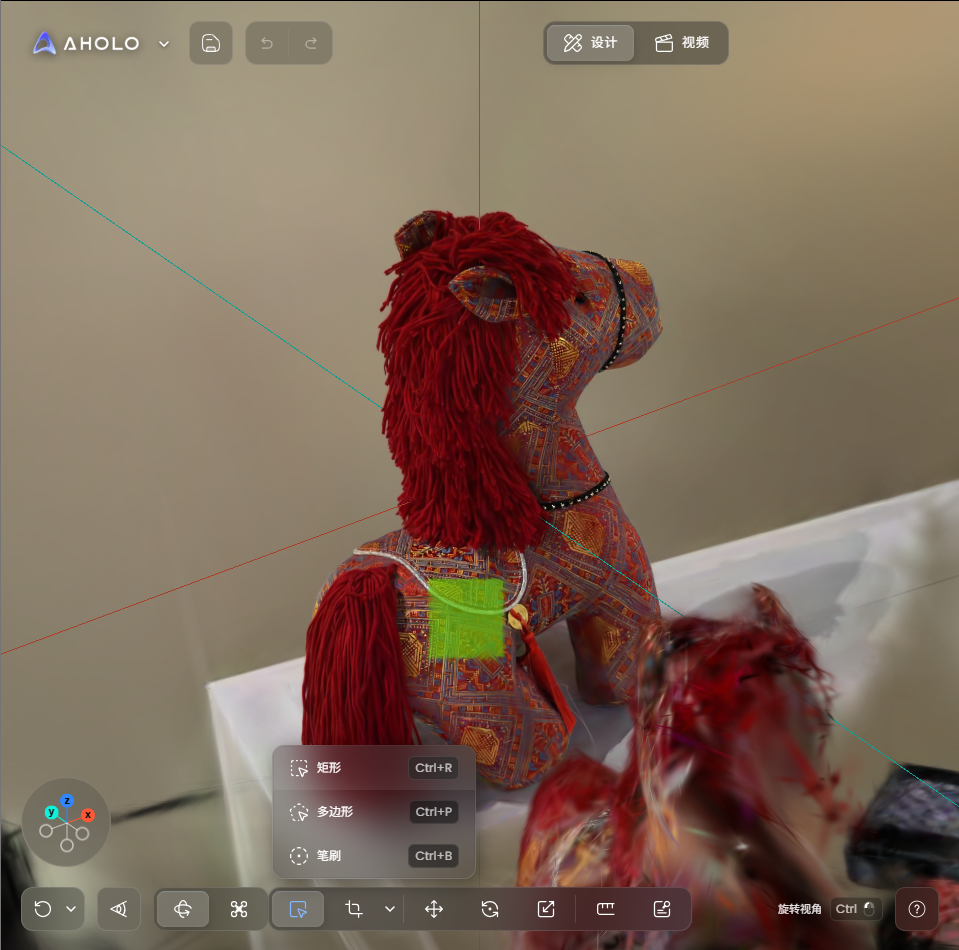
Local Selection allows you to select a specific area or object in the scene, so you can adjust only the selected part without affecting the rest of the model.
To use it, select or paint over the target area. After confirming the selection, you can move, adjust, or apply effects to that specific area.
8. Tips for Better Control
For a smoother editing experience, we recommend the following workflow:
Use rotate, pan, and zoom to find a good overall view of the model or scene.
Switch camera modes based on your task. Use Orbit Mode when you want to observe a model from different angles, and use Fly Mode when you need to move freely through a spatial scene.
Enable the Ground Reference Line and use Move, Rotate, and Scale to adjust the object or scene relative to the reference line, so it aligns better with the real-world ground direction.
Adjust Skybox and Field of View based on the visual result you want. Skybox helps enhance the scene background and atmosphere, while Field of View controls the visible range and how the subject is presented.
If you only need to adjust a specific part of the model, use Local Selection to edit the target area without affecting the rest of the scene.
9. What’s Next
Once you’re familiar with camera controls, you can continue with:
Cropping Point Clouds / Gaussian Splats (optimize model range)
Was this helpful?
Still need help? Ask the team