Professional Mode
Written By Aholo3d
Last updated 3 months ago
What is Professional Mode
It is Aholo’s advanced reconstruction workflow for complex capture projects. It supports multi-scene, multi-device, and mixed-format uploads, along with customizable reconstruction parameters, to help you achieve high-quality results comparable to local software.
Professional Mode is recommended for scenarios such as:
Using multiple devices in the same project, such as cameras, phones, drones, and panoramic cameras
Separating captures by scene, such as ground-level vs. aerial or indoor vs. outdoor
Fine-tuning reconstruction parameters for optimal output quality
In Professional Mode, you can:
Upload photos, videos, and panoramic videos in a single task
Organize materials by scene and device
Customize parameters such as splat count, training steps, and image resolution
Run quality validation before starting full reconstruction
Upload Capturing Materials
Enter Professional Mode
Go to the Aholo workspace and enter the Professional Mode upload interface.
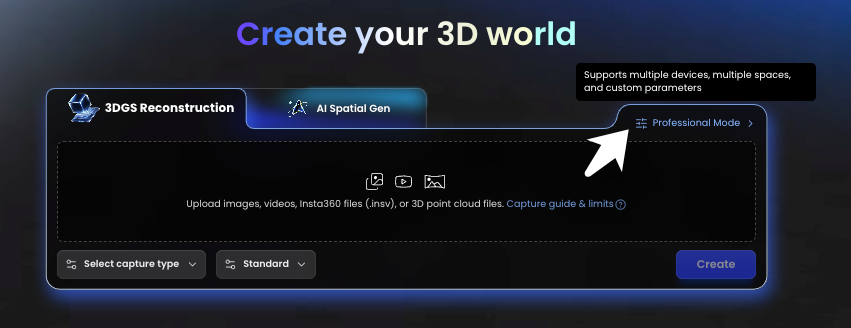
Upload Mixed Materials
Support the following formats in a single task:
You can drag and drop files into the upload area, or click to select local files. The system will process all materials together in a single task.
Note: 3D point cloud files (.ply / .spz) cannot be mixed with the above formats. Point clouds must be uploaded as a separate standalone task.
Organize Materials by Scene
By default, all uploaded materials belong to a single scene.
You can manually add new scenes to group your materials by capture environment.
A single project supports a maximum of 5 scenes.
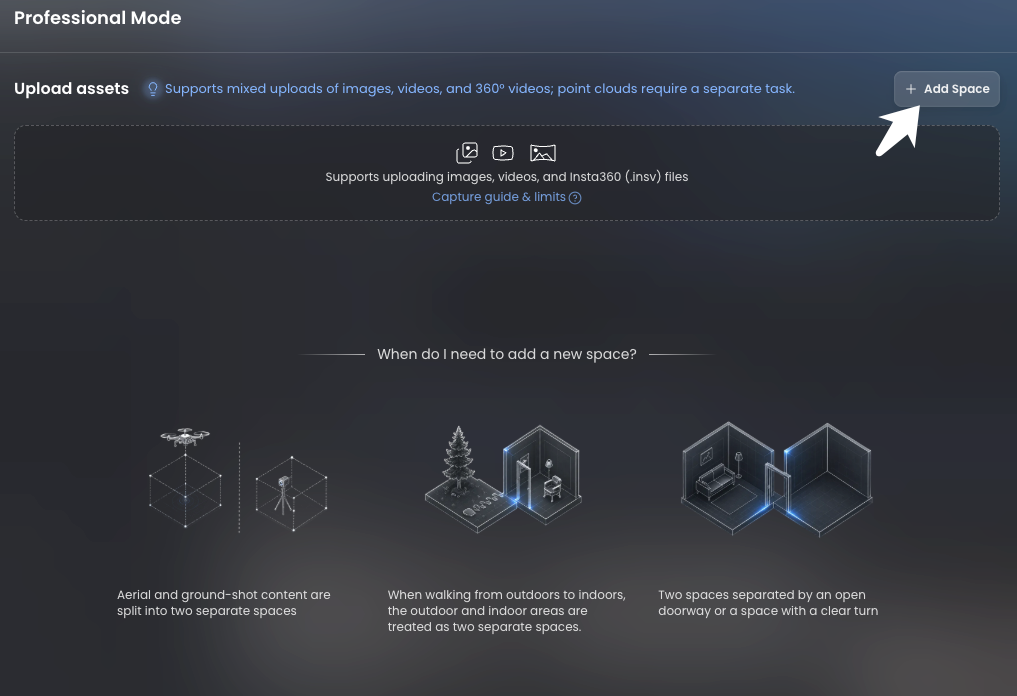
When to Separate Multi Scenes
- Ground vs. aerial capture: Drone perspectives and ground-level perspectives differ significantly and should be treated as separate scenes
- Indoor vs. outdoor: Lighting and spatial structure differ significantly when transitioning between the two; separate scenes are recommended
- Two spaces separated by doorways: For example, two rooms connected only by an open doorway
- Corridors with sharp turns: Spaces with discontinuous spatial structure should be separated
When to keep as one scene:
- Multiple angles of the same room
- Continuous capture within the same outdoor area
- Supplementary captures with the same device in the same space
Add Device Information
Automatic Recognition
To ensure optimal results, the system will attempt to automatically identify the device model (e.g., iPhone 15) and camera type (standard / fisheye / panoramic) from your materials.
Manual Supplement
If certain files lack EXIF metadata (e.g., post-processed images), the system will prompt you to manually select the device type.
Note: You can only proceed to the next step once all materials have been either automatically recognized or manually supplemented.
Tip: Keep materials from the same device and same camera type together for better reconstruction results.
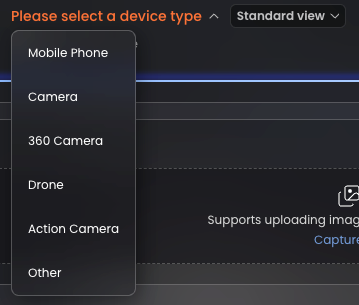
Customize Reconstruction Parameters
Professional Mode offers two approaches: parameter templates and custom settings.
Parameter Template
Select a preset template, and the system will automatically configure all parameters:
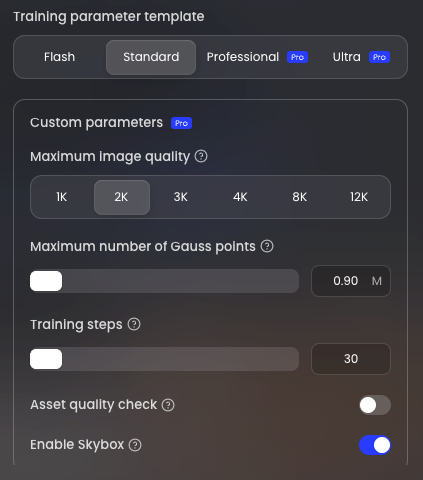
Custom Mode
Select Custom to adjust each parameter individually.
Modifying any parameter while using a template will automatically switch the mode to Custom Mode.
Key Parameter Descriptions
Limit Image Size
Limits the maximum resolution of input images during the Gaussian splatting phase. Higher values preserve more detail but increase training time. Lower the resolution to speed up training.
Note: Selecting 8K or above will significantly increase training time.
Max Splat Count
The maximum total number of Gaussian splats in the reconstruction result. This controls the upper limit of detail in the output.
Higher values allow the model to capture richer detail but increase reconstruction time.
- Default range: 300K – 40M
Training Steps
The maximum number of training steps before stopping. More steps allow more thorough training but take longer.
Background Removal
Separates the subject from the background, producing a clean, background-free 3D model. Available only when:
- The project is in Object mode
- The upload is a non-mixed reconstruction (single scene + single device + single camera type + single format)
Sky Box
Creates a dedicated sky model that projects the environment onto a large sphere, used to reduce distant artifacts and floating geometry.
Available for selection based on scene needs.
Image Selection
- Use All Images: All imported images participate in reconstruction
- Smart Detection: The system samples and detects issues such as motion blur, strong reflections, and people walking through the scene. After detection, you can remove problematic materials.
Note: Smart Detection requires all images to be uploaded to the cloud first and may take considerable time. Use with care.
Basic Reconstruction Quality Validation
In Professional Mode, a single poor-quality segment can severely compromise the overall reconstruction quality.
Basic quality validation samples your uploaded materials before full reconstruction begins, checking for issues such as motion blur, severe noise, strong reflections, and heavy backlighting — helping you identify and remove problematic materials early.
Validation Process
1. The system extracts sample frames from each material group (10 evenly sampled frames per video, 1 frame per image group)
2. The sampled frames are sent through the quality assessment workflow to detect:
- Obvious motion blur
- Severe noise
- Strong reflections / heavy backlighting that make textures difficult to identify
3. Each material group receives a result after validation
Common Limitation
Scene Limit
A maximum of 5 scenes per project. Beyond this, split into multiple projects.
Point Cloud Restriction
3D point cloud files (.ply / .spz) can only be uploaded separately and cannot be mixed with photos, videos, or panoramic videos.
Smart Detection Limitation
Smart Detection (under Image Selection) is sampling-based. Results are shown at the material group level and cannot identify individual problematic images.
Gaussian Splat Scoring Limitations
- Gaussian splat scoring is unavailable when Background Removal is enabled
- Gaussian splat scoring is unavailable when the camera type includes panoramic or fisheye
Processing Time
Processing time depends on the number of materials, file sizes, and parameter configuration. It may range from a few minutes (small projects) to several hours (complex projects). You can leave the page during processing; you will receive a notification when the reconstruction is complete.
Was this helpful?
Still need help? Ask the team