Upload and Reconstruction
Written By Aholo3d
Last updated 4 months ago
After capturing, you can upload your photos or videos to Aholo to generate an editable 3D scene or model.
Follow the steps and requirements below:
Upload Your Files
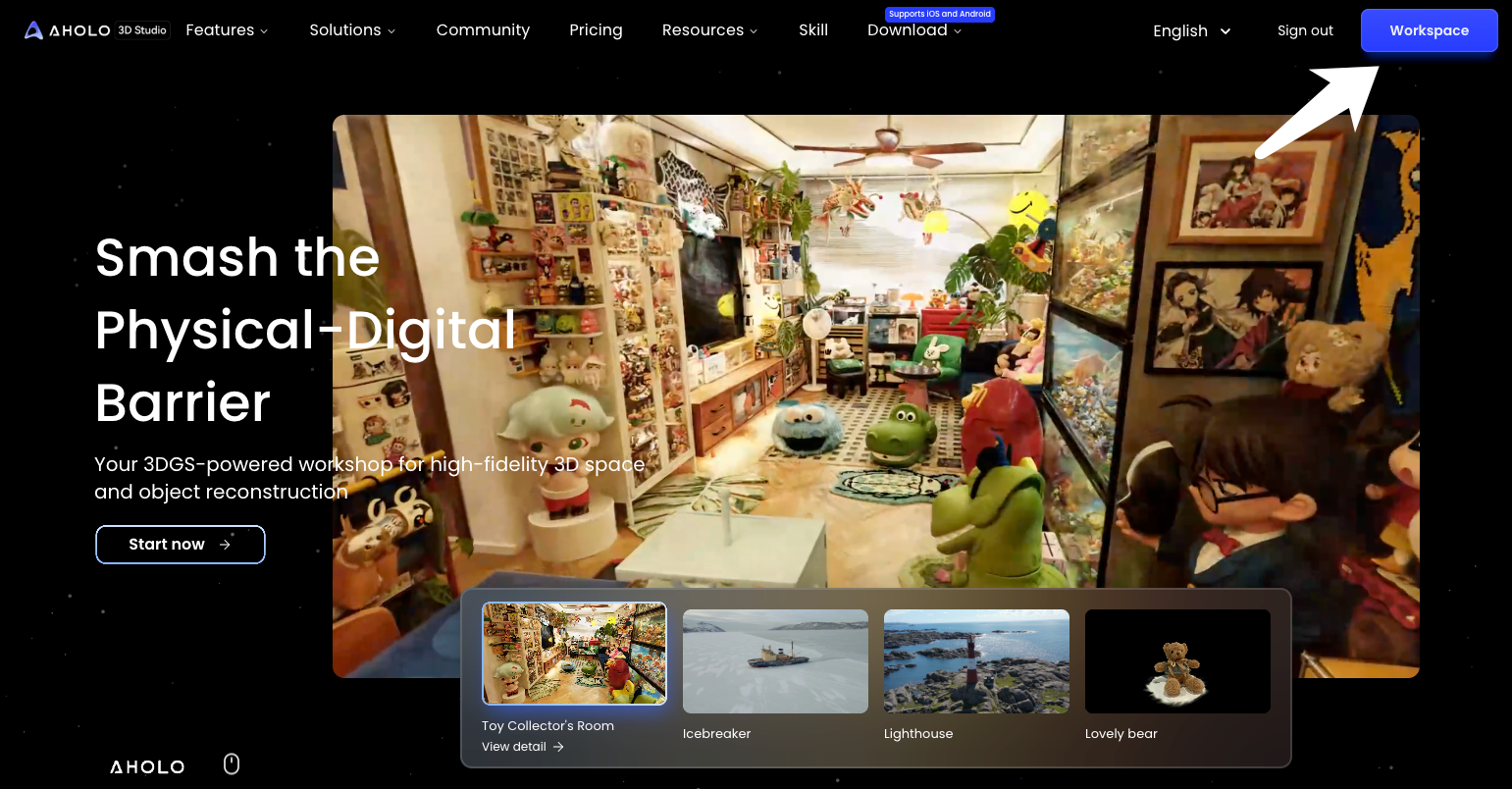
1. Sign In & Go to Workspace
Go to the Aholo website and log in
Enter the Workspace
2. Upload Photos or Videos
In the upload window, you can:
Drag and drop files into the upload area
Or click to select files from your device
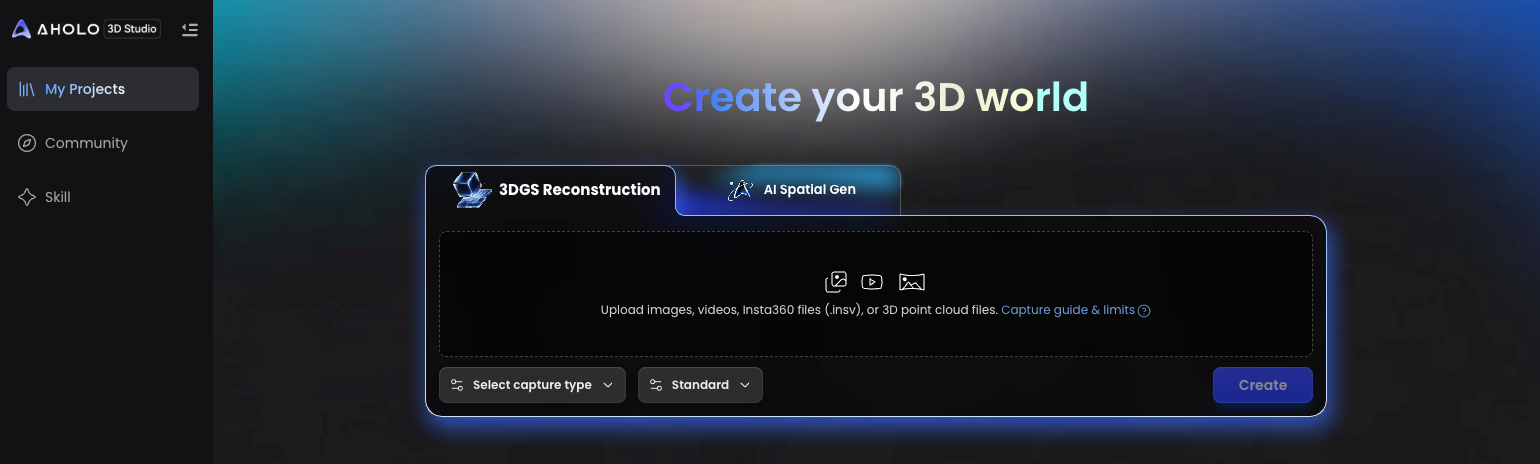
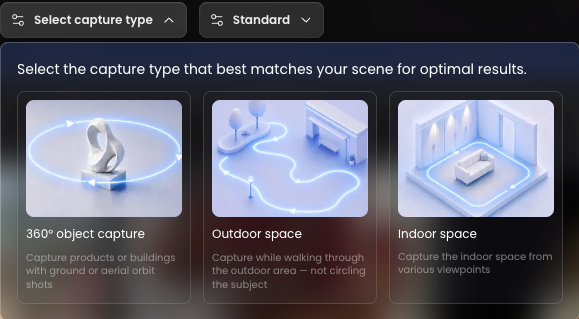
3. Select Capture & Reconstruction Type
360° Object Capture: Capture products or buildings with ground or aerial orbit shots
Outdoor Space: Capture while walking through the outdoor area — not circling the subjectOutdoor Space:
Indoor Space: Capture the indoor space from various viewpoints
Supported File Types & Requirements
1. Image
Formats:
.jpg / .jpeg / .png / .webp
Quantity:
Minimum: 20 images
Recommended: 50–200 (depending on complexity)
2. Video
Formats:
.mp4 / .m4v / .mov / .qt
Duration:
Total Video Duration ≥ 30s
3. 360° Video
Format:
.insv
Duration:
Total Video Duration ≥ 30s
4. 3D Point Cloud
Formats:
.ply / .spz
Quantity:
1 file
Folders or ZIP files are supported.
Manage Your Files
After uploading, you can review and refine your files:
Zoom in to inspect images
Delete blurry or problematic files
Upload additional missing content
Before reconstruction, make sure:
Images are sharp and clear
Coverage is complete
No obvious errors in the dataset
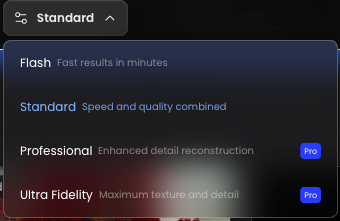
Choose Reconstruction Quality
Aholo offers multiple reconstruction settings:
Flash – Fast processing for quick structure checks
Standard – Balanced quality and speed (recommended)
Professional – Higher quality for detailed projects
Ultra Fidelity – Maximum texture and detail
Select the level based on your needs.
Start Reconstruction
Click “Create” to begin cloud processing.
Processing Time
Processing time depends on:
Number of files
File size
Selected quality level
Typical duration:
A few minutes (small projects)
Up to around an hour (complex projects)
You can leave the page during processing. Results will be generated once complete.
Background Removal (For Object)
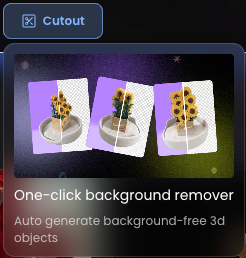
For object reconstruction, you can use the “cutout” feature:
One-click background removal
Automatically generates a clean, isolated 3D object
Ideal for product or single-object presentations.
After Reconstruction
Once your model is ready, you can:
View and refine it in the editor
Add annotations, crop, or measure
Export videos
Generate a shareable link
Learn More
Was this helpful?
Still need help? Ask the team