Basic Operations
Written By Aholo3d
Last updated 3 months ago
1. Camera Control
In Aholo's 3DGS viewer, you can freely control the camera using your mouse, keyboard, or touch gestures to view reconstruction results from any angle.
2. Camera Mode
The Aholo viewer offers multiple camera modes to suit different viewing needs and scene types.
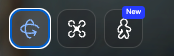
Fly Camera
In Fly Camera mode, you can freely navigate like a drone, observing the scene from any position and angle.
Use cases:
- Outdoor spaces
- Large indoor scenes
Orbit Camera
Orbit Camera rotates around a target point, ideal for observing objects or specific areas from all angles.
Use cases:
- Object models
- Observing a single subject from multiple angles
Walkthrough Mode
Walkthrough mode lets you browse the scene as if walking through a real space.
Use cases:
- Scenes converted to voxels
- Immersive indoor or architectural walkthroughs
Features:
- First-person and third-person perspective switching
- Click to move + Space to jump
- Collision detection — cannot walk through walls or objects
See Walkthrough Mode for detailed instructions.
3. Camera Speed
You can adjust the camera movement speed in the viewer: Slow – Fast.
The speed toggle is located in the viewer toolbar. Choose the speed that best fits your current scene.

4. Display & Performance
The viewer provides skybox display controls and quality mode options, allowing you to adjust the visual experience based on your device performance and viewing needs.
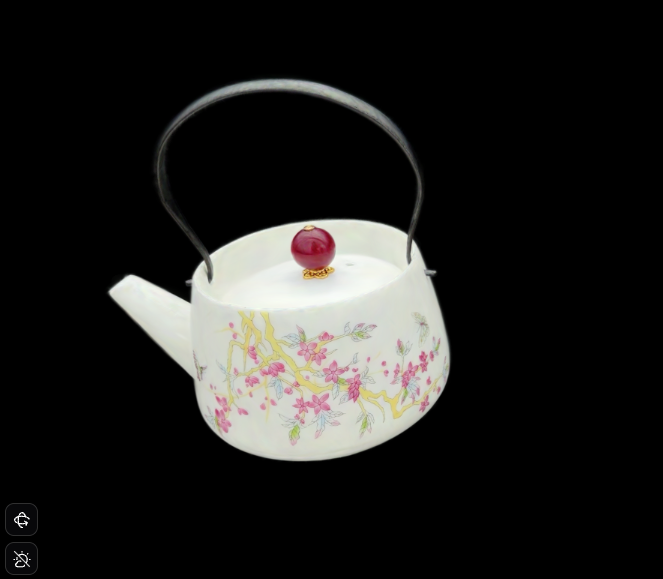
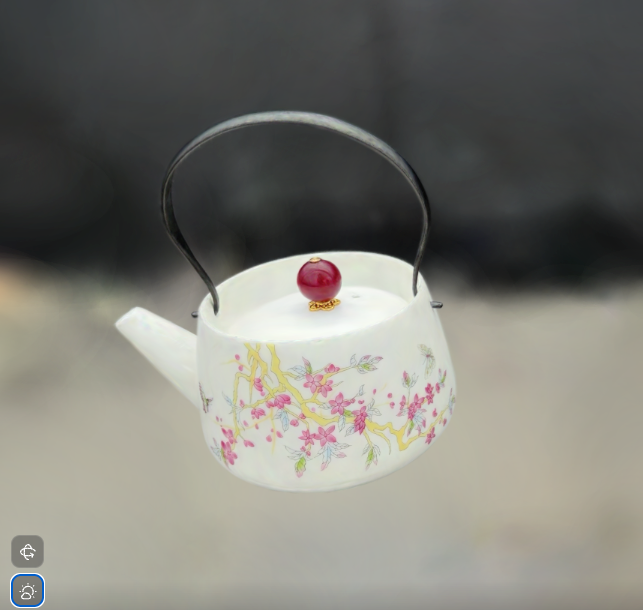
Skybox
A skybox is a special sky model that projects the environment onto a large sphere, helping to reduce distant artifacts and floating geometry.
Toggle the skybox on or off from the viewer toolbar.
Quality Mode
The viewer offers three quality modes for different scenarios and device performance levels.

Speed Priority
Prioritizes smooth navigation by reducing rendering precision. Suitable for:
- Low-performance devices
- Quickly browsing through scenes
- Quick previews where image quality is not critical
Effect Priority (HD)
Balances image quality and smoothness for a good visual experience. Suitable for:
- Most everyday browsing
- Presenting reconstruction results to others
Original Quality (RAW)
Renders at native resolution for the highest image quality. Only available for your own projects. Suitable for:
- Inspecting reconstruction details
- Scenarios requiring maximum precision output
- Evaluating model quality
5. AI-Generated Space Viewing
For projects generated by AI Space, the viewer supports two viewing modes: 3DGS model and panorama. Other project types only support the viewing mode corresponding to their reconstruction results.
3DGS Mode
3DGS mode is the default viewing experience you are familiar with. It renders the scene using 3D Gaussian Splatting technology, supporting all camera controls including free rotation, zoom, and pan.
Use cases:
- Freely viewing the space from multiple angles
- Inspecting reconstruction structure and details
Panorama Mode
360° panorama is the intermediate result generated by AI Space, providing an immersive equirectangular projection view.
Use cases:
- Quickly browsing the overall spatial effect
- Getting a viewing experience similar to scrolling through panoramic photos
Was this helpful?
Still need help? Ask the team